
User Documentation: AI Chatbot Kaddora Plugin 🎀
Welcome to our official User Documentation for AI Chatbot Kaddora Plugin for WordPress, we will guide you how to install, configure and customize the plugin, so you can install and activate it easily, stay connected…
Description 📜
Lightweight, fully customizable, Easy to install. A modern, interactive and fully customizable AI chatbot plugin for WordPress. Integrate any AI model (OpenAI, Hugging Face, or custom) into your website with a responsive chat interface and an easy-to-use admin panel. lets you add a smart, AI-powered chat experience to your WordPress site in minutes. Simply paste your API key (OpenAI, Hugging Face, or any custom endpoint) in the admin settings, choose your model, and customize the chatbot’s look and feel — no coding required.
📑 Table of Contents
1. Requirements & Compatibility 🎗️
| WordPress 5.8+ (tested up to 6.6) |
| PHP 7.4+ (recommended 8.x) |
| MySQL 5.7+ / MariaDB 10.4+ |
| Common PHP extensions: cURL, JSON, mbstring, OpenSSL |
| Compatible with Gutenberg (Block Editor) and Classic Editor |
| Tested with caching and security plugins (WP Super Cache, LiteSpeed Cache, Autoptimize, Cloudflare, Wordfence) |
2. Quick Start (Installation) ✈️
Download the Plugin Zip file direct from our official website or visit WordPress Plugin section and search the ‘AI Chatbot Kaddora’ Plugin and after downloading, click on Activate button to use it. let’s start step by step-
- Go to the WordPress Dashboard ->
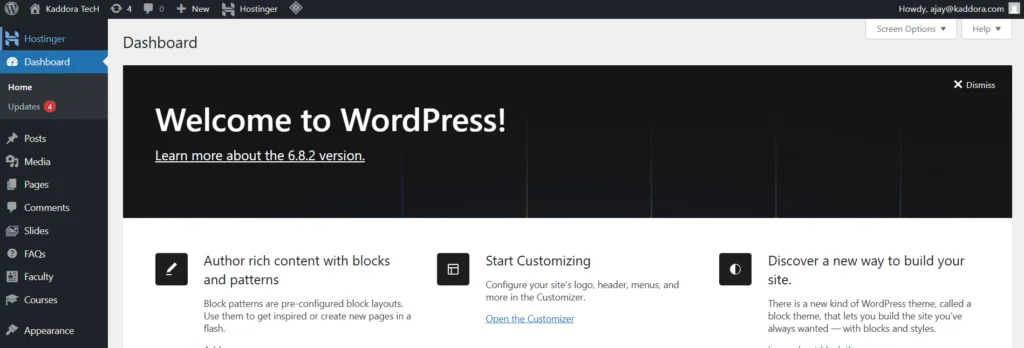
- Plugins → Add New →
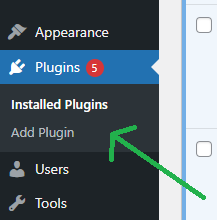
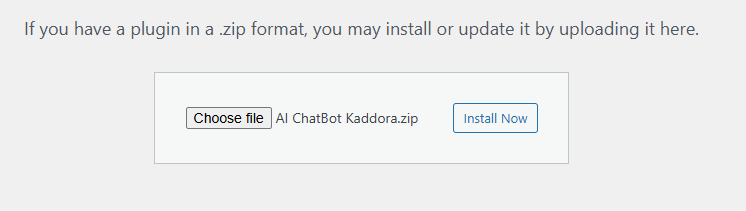
- Upload Plugin -> Choose the Ai-Chatbot-Kaddora.zip file and click Install Now.
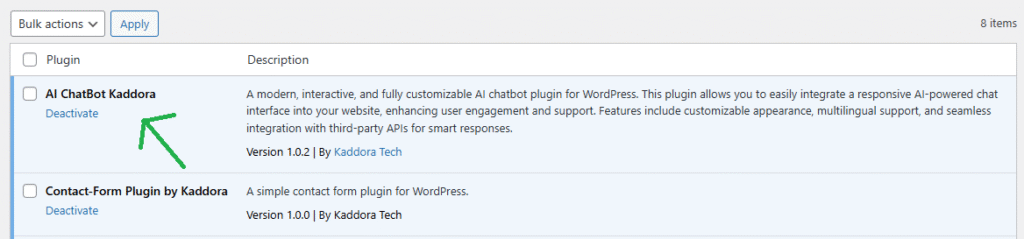
- After successfully installation of plugin, you will see ‘AI Chatbot Kaddora’ in your installed plugin section, here you can check version and description about the plugin
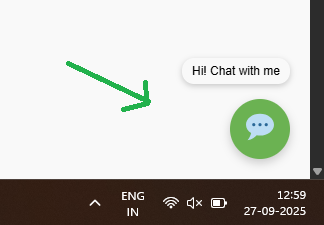
- You will see plugin is activated and AI Chatbot Toggle button apprear in right bottom corner of the website –
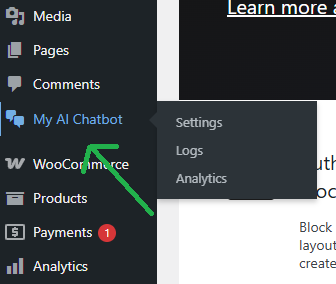
- In WordPress dashboard, you can see ‘My AI Chatbot’ option available, click on it and access the setting part of the Plugin-
3. API Module & API Keys (How to connect) ♨️
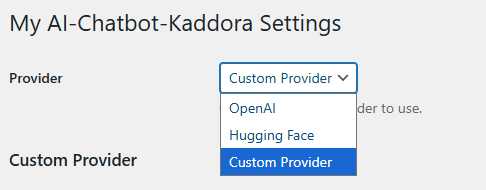
- In AI chatbot setting page, there are two options for Module Provider and API Key. Choose your provider name from drop down list such as OpenAI or Huggingface or If you have custom module provider then choose custom provider in option and fill it.
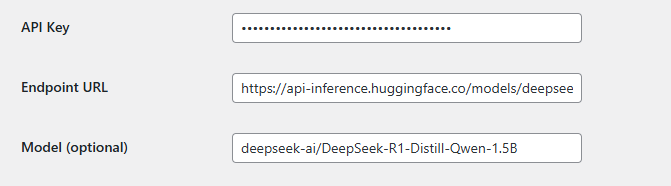
- After module provider, you will find API option, fill your API key and save it, if you choose custom module then you have to fill your ‘Endpoint URL’ also
OpenAI: If you choose OpenAI module, Paste your OpenAI API key into the API Key field. Select model (e.g. gpt-4o-mini or gpt-4o) if supported by your plan.
HuggingFace: If you choose OpenAI module, Paste your Hugging Face API token (starts with hf_…) into API key. Optionally set a Model / Endpoint (example format):
Optional inference endpoint: https://api-inference.huggingface.co/models/<owner name>/<model name>
Custom Model: If you host your own endpoint, set Provider → Custom, paste the full endpoint URL and any headers required. The plugin will POST a JSON payload like: { “message”: “Hello” }
4. Customization (Appearance) 🦚
Chat Texts & Fields – Customize according to you
Bot Name — Bot name will appear at the top of the chatbot UI, you can change it according to you in AI setting page.
Welcome Message — The first message of the AI chatbot that is called welcome message for user, change it according to you.

Colors – You can customize colors for Header Background, Toggle Button, Window Background, Input Background, and also Send Button. Easy to use Colors Picker
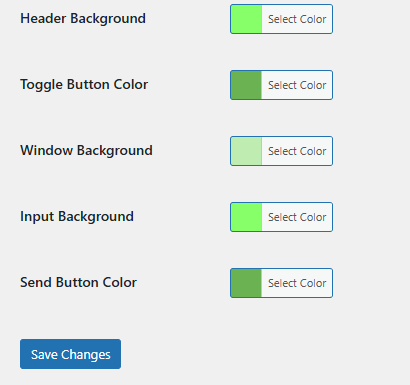
After customize your color and Bot name, don’t forget to click ‘Save Changes’ button.
5. Troubleshooting (Common issues) 🔓
Chat window not appearing –
- Ensure plugin is activated.
- Clear page and plugin caches, disable JS minification plugins temporarily.
- Check console for JS errors.
Invalid API key / 401 / 403 from provider –
- Re-check the key, ensure it’s for the correct provider and not expired.
- If using Hugging Face, make sure your model supports inference and your token has inference scope.
Slow responses –
- Check provider response times and model used.
- Increase server resources or move to a faster provider.
CORS / Preflight errors for custom endpoints –
- Ensure your endpoint sends proper CORS headers and allows POST from the site domain.
6. Frequently Asked Questions (F&Q) 🪂
Q. Which PHP version do I need?
A. PHP 7.4 or higher is required. PHP 8.x is fully supported.
Q. Does it work with caching plugins?
A. The plugin has been tested with WP Super Cache,LiteSpeedCache, Autoptimize, and others.
Q. Which databases are supported?
A. MySQL 5.7+, MySQL 8.0+, and MariaDB 10.4+.
Q. Is it responsive?
A. Yes, the chatbot automatically adapts to mobile, tablet, and desktop screen sizes.
Thank you for connecting Kaddora Tech ❤️