
AI Chatbot Builder – Create Smart AI Chatbots for Customer Support & Lead Generation by Kaddora
User Documentation –
📄 Table of Contents
1. Introduction
AI Chatbot Builder – Create Smart AI Chatbots for Customer Support & Lead Generation by Kaddora is a powerful WordPress plugin designed to help website owners create and manage AI-powered chatbots directly from their WordPress dashboard.
The plugin helps businesses automate customer conversations, answer common questions, provide instant assistance, and collect valuable leads through an interactive chatbot interface. It is designed for websites that want to improve customer engagement while reducing repetitive manual support tasks.
With the AI Chatbot Builder, you can configure your chatbot, customize its appearance and behavior, connect an AI/API provider, and display the chatbot on your website. The plugin can be used for customer support, lead generation, product or service inquiries, FAQs, and other automated communication workflows.
2. Technical Requirements
- WordPress: WordPress 6.0 or higher recommended.
- PHP: PHP 7.4 or higher recommended.
- MySQL: MySQL 5.7 or higher, or MariaDB 10.3 or higher.
- Web Server: Apache or Nginx recommended.
- HTTPS: SSL/HTTPS is recommended for secure API communication and chatbot usage.
- Browser: Latest versions of Chrome, Firefox, Edge, or Safari.
- JavaScript: JavaScript must be enabled in the visitor’s browser.
- JavaScript: JavaScript must be enabled in the visitor’s browser.
- API Access: An active and valid AI/API provider account may be required for AI-powered responses.
- API Key: A valid API key must be configured if the selected AI provider requires one.
3. Installation
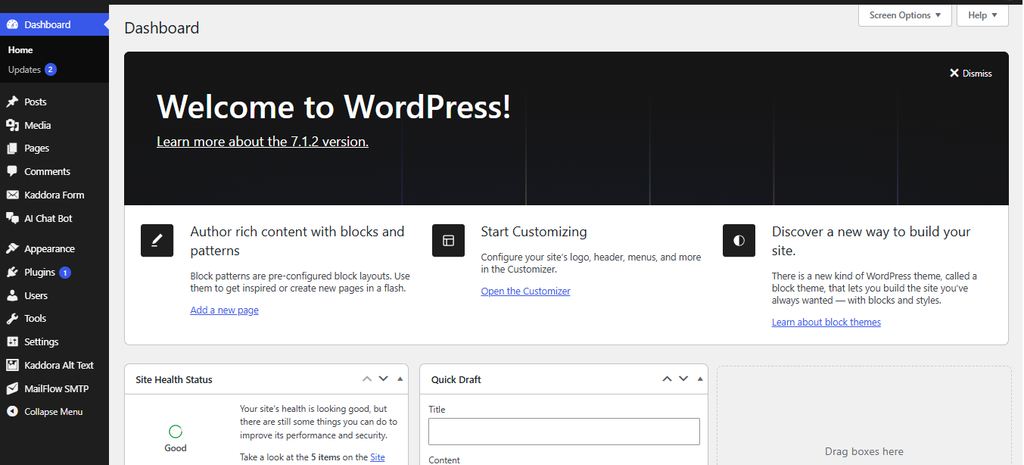
1.Log in to WordPress
Log in to your WordPress dashboard using an administrator account.
2. Open the Plugins Page
Go to Plugins → Add New Plugin from your WordPress admin dashboard.
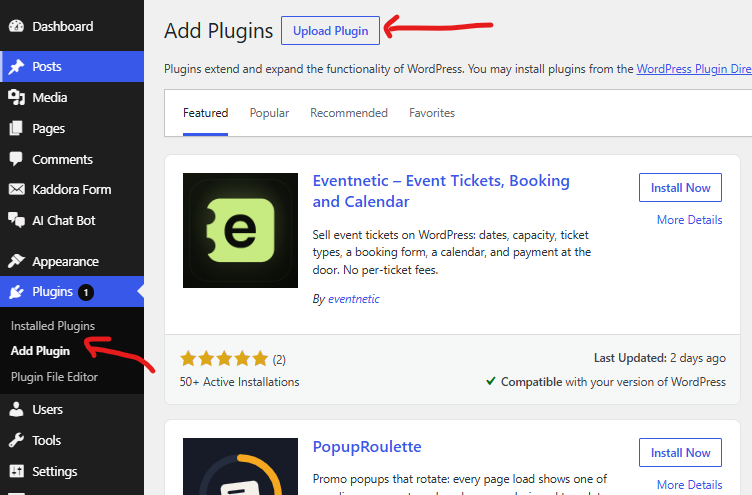
3. Upload the Plugin
Click Upload Plugin, choose the plugin .zip file, and select Install Now.

4. Install the Plugin
Wait for WordPress to complete the plugin installation process.
5. Activate the Plugin
After installation is complete, click Activate Plugin to enable the plugin.

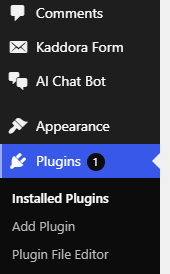
6. Open Plugin Settings
After activation, open AI Chatbot Builder from the WordPress admin menu.
8. Complete Initial Configuration
Configure the required chatbot and AI/API settings, then save your configuration.
4. Initial Setup
1. Open AI Chatbot Builder
Open AI Chatbot Builder from the WordPress admin dashboard to access the plugin settings.
2. Configure General Settings
Set the basic chatbot options and configure the default behavior of your chatbot.
3. Add Business Information
Enter your business name, website information, contact details, and other relevant information.
4. Configure AI Settings
Select and configure the required AI provider, model, and related AI options.
5. Add API Key
Enter your valid AI/API key in the designated API configuration field.
6. Configure Chatbot Behavior
Set the chatbot’s welcome message, instructions, responses, and conversation behavior.
7. Customize Chatbot Appearance
Configure the chatbot colors, position, icon, messages, and other visual settings.
8. Configure Lead Generation
Enable the required lead fields and configure how visitor information should be collected.
9. Save & Test Settings
Save all configuration changes and test the chatbot on your website to verify that everything works correctly.
5. Chatbot Builder
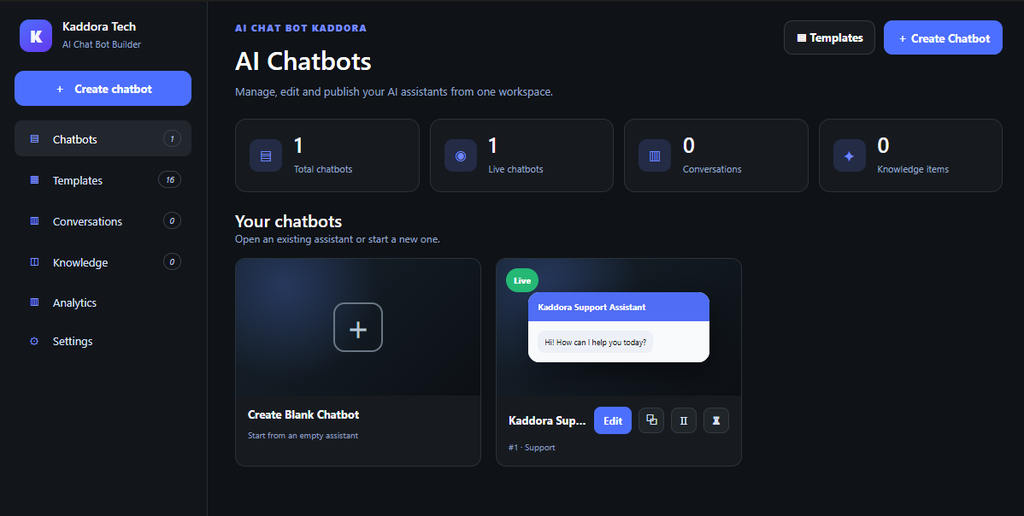
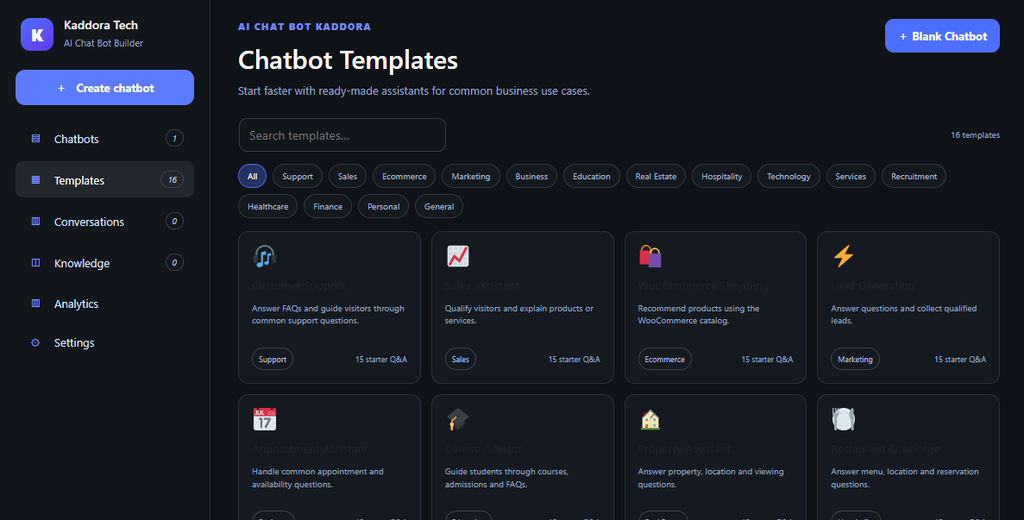
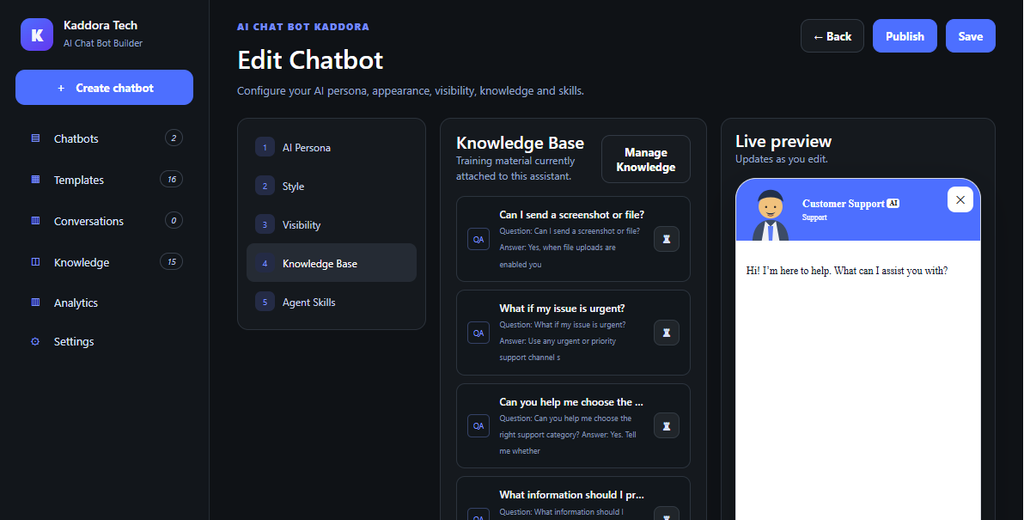
1. Create a New Chatbot
Create a new chatbot from the Chatbot Builder to start configuring your AI assistant.
2. Enter Chatbot Name
Add a suitable name for your chatbot to identify it easily in the dashboard.
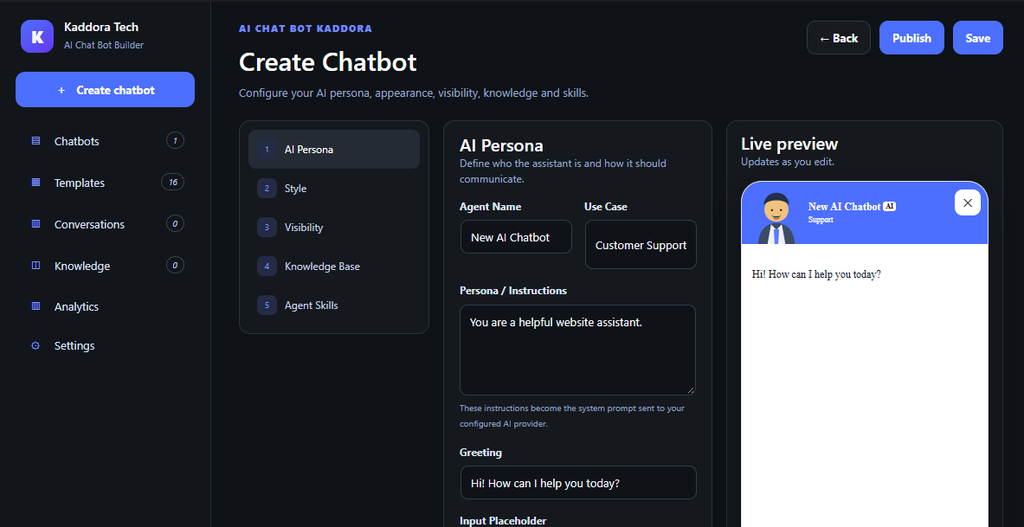
3. Configure Welcome Message
Set the initial message that visitors will see when they open the chatbot.
4. Add Chatbot Instructions
Define instructions and guidelines that control how the chatbot responds to visitors.
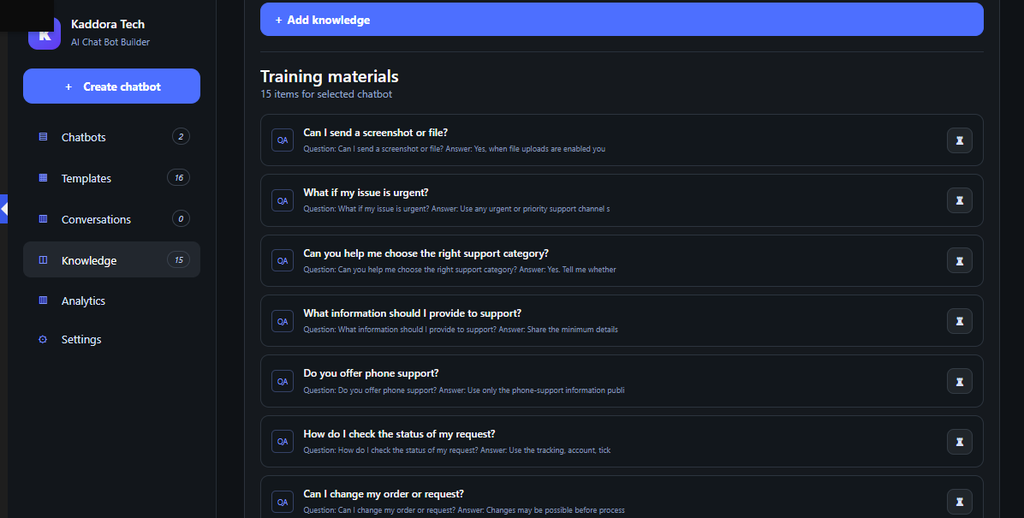
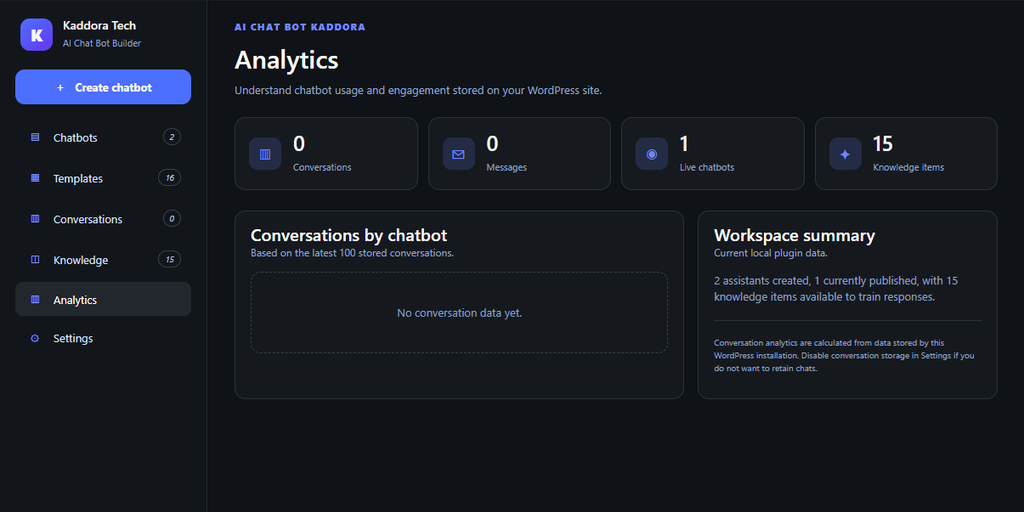
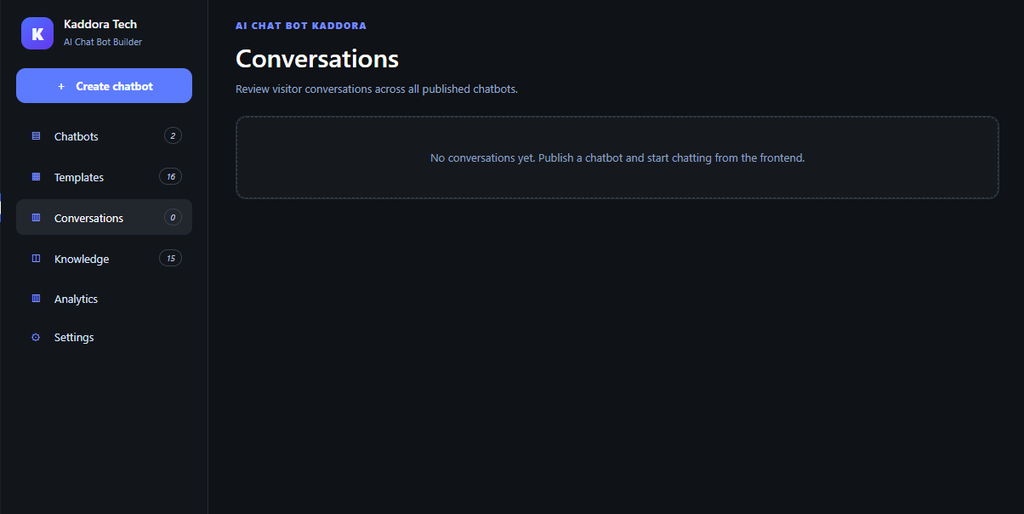
5. Configure Conversation Settings
Set the required options for managing chatbot conversations and user interactions.
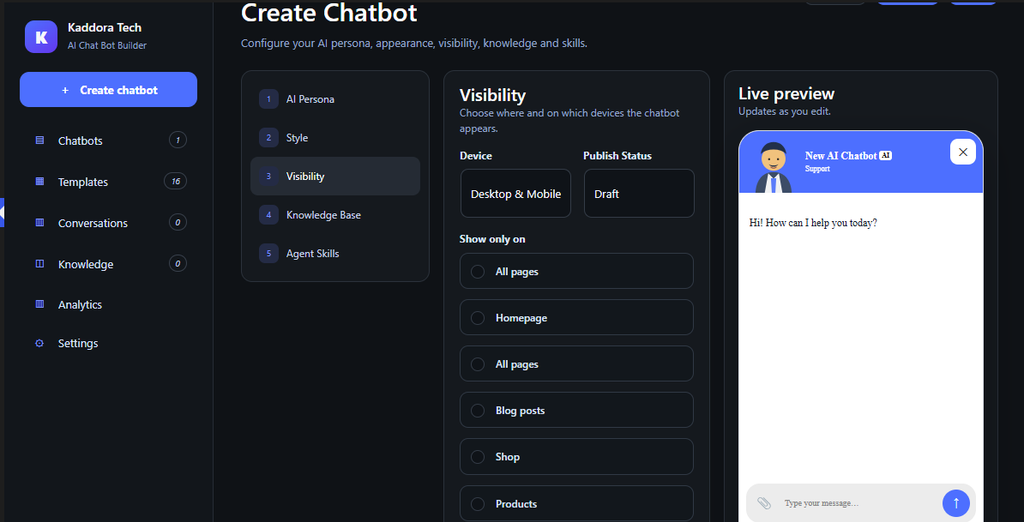
6. Customize Chatbot Appearance
Customize the chatbot colors, icon, position, header, and other visual elements.
7. Configure Lead Collection
Enable the required fields to collect visitor information and generate leads.
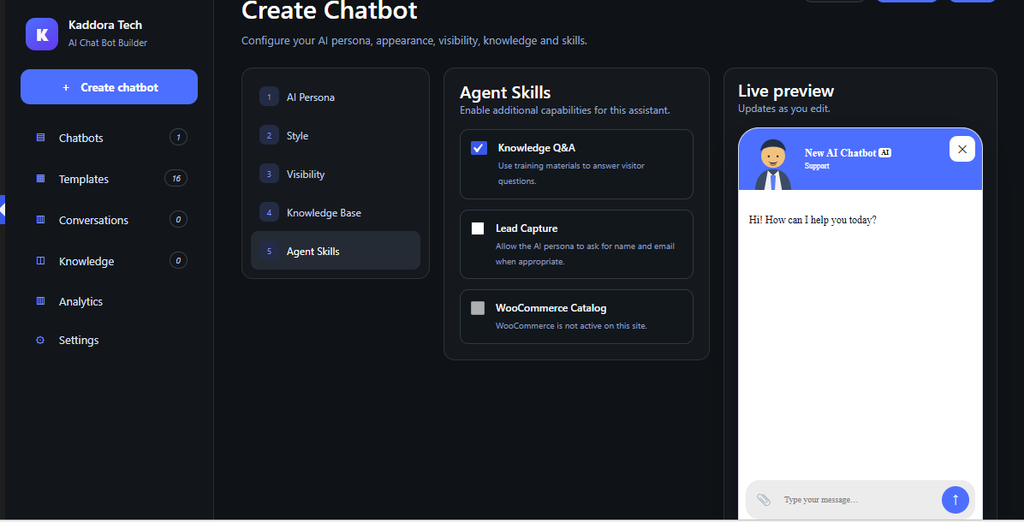
8. Preview the Chatbot
Use the preview option to check the chatbot’s appearance and behavior before publishing.
9. Save & Publish
Save your chatbot configuration and publish it on your website.
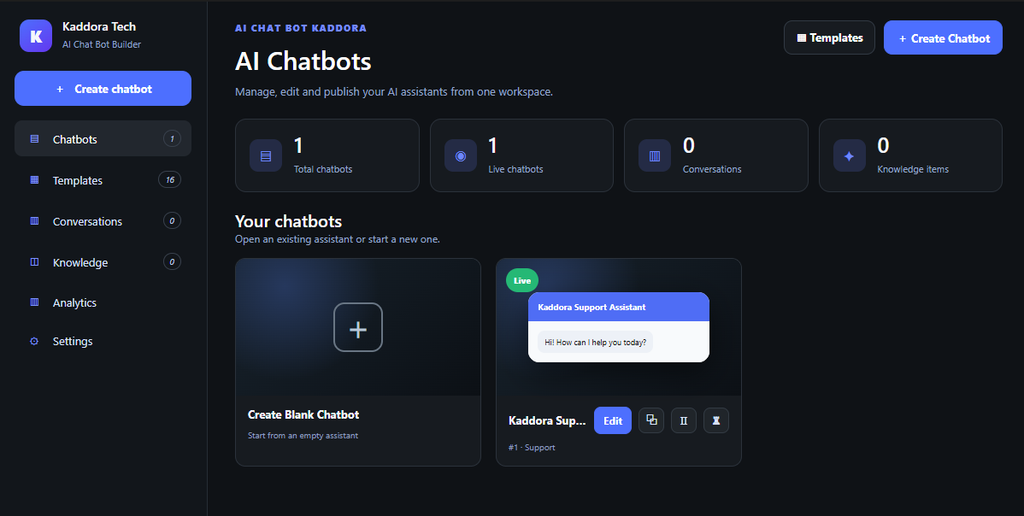
6. AI/API Configuration
1. Open AI/API Settings
Open the AI/API configuration section from the plugin settings to connect your AI service.
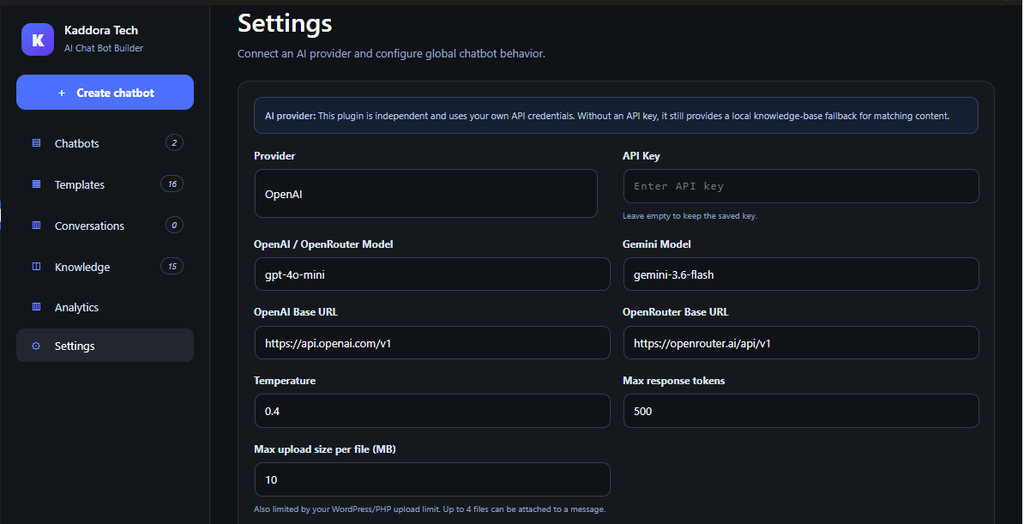
2. Select AI Provider
Select the supported AI provider that you want to use with the chatbot.
3. Add API Key
Enter the valid API key provided by your selected AI service.
4. Configure AI Model
Select the available AI model according to your chatbot requirements.
5. Configure AI Instructions
Add system instructions that define the chatbot’s role, behavior, and response style.
6. Configure Response Settings
Adjust the available AI response options according to your desired chatbot behavior.
7. Test API Connection
Use the available test option to verify that the API connection is working correctly.
8. Save API Configuration
Save your AI/API settings after completing the configuration.
9. Test AI Chatbot
Send a test message through the chatbot to verify that AI responses are being generated correctly.
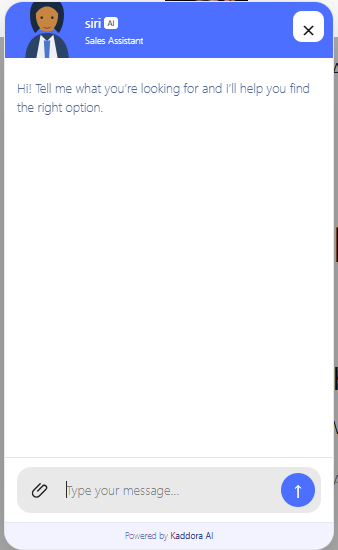
7. Features
1. AI-Powered Chatbot
Create intelligent AI chatbots that can automatically interact with website visitors.
2. Customer Support
Provide automated responses to common customer questions and support requests.
3. Lead Generation
Collect visitor information such as name, email, phone number, and other configured fields.
4. Smart Conversations
Allow visitors to communicate naturally with the AI chatbot through conversational interactions.
5. Custom Welcome Message
Set a personalized welcome message that visitors see when they open the chatbot.
6. Chatbot Customization
Customize the chatbot’s appearance, including colors, position, icon, and other visual elements.
7. AI/API Integration
Connect the chatbot with the supported AI/API service to generate AI-powered responses.
8. Custom AI Instructions
Define instructions that control the chatbot’s role, behavior, and response style.
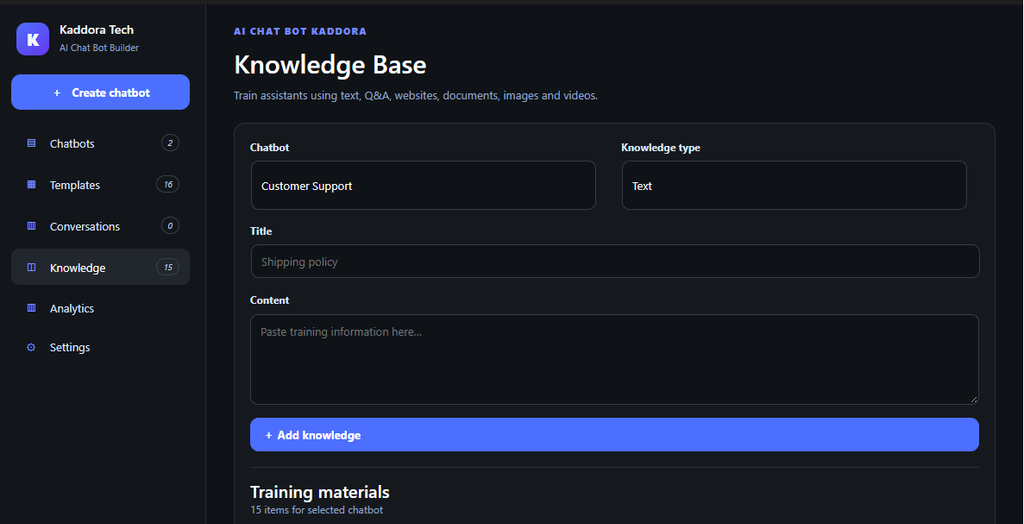
9. FAQ & Knowledge Support
Configure information and instructions that help the chatbot provide relevant answers to visitors.
10. Responsive Design
Provide a chatbot experience that works across desktop, tablet, and mobile devices.
11. Easy WordPress Integration
Manage and configure the chatbot directly from the WordPress administration dashboard.
12. Chatbot Preview
Preview the chatbot before publishing it to verify its appearance and configuration.
13. Lead Collection
Configure custom fields and collect useful visitor information through chatbot conversations.
14. Secure API Configuration
Store and configure the required API credentials through the plugin’s settings.
15. Easy Configuration
Manage chatbot, AI, appearance, and lead-generation settings from a centralized interface.
8. Privacy & Security
1. API Key Protection
Keep your AI/API credentials secure and do not expose them publicly.
2. Secure Data Handling
Handle chatbot and lead data carefully and only collect information required for your intended functionality.
3. Input Validation
Validate user-provided data before processing it to help prevent invalid or malicious input.
4. Data Sanitization
Sanitize submitted data before storing or processing it within WordPress.
5. Output Escaping
Escape dynamic data when displaying it on the website or inside the WordPress admin area.
6. WordPress Nonces
Use WordPress nonce protection for applicable forms and AJAX requests to help prevent unauthorized requests.
7. User Permissions
Restrict administrative functionality to users with the appropriate WordPress capabilities.
8. Secure API Communication
Use HTTPS when communicating with external AI/API services to protect data during transmission.
9. Third-Party API Privacy
Review the privacy policy and data-handling practices of the AI/API provider connected to the chatbot.
10. Lead Data Privacy
Inform website visitors when personal information is collected through the chatbot and use the collected information appropriately.
11. Plugin Updates
Keep WordPress, the plugin, and related dependencies updated to receive security and compatibility improvements.
12. Website Backup
Maintain regular backups of your WordPress website and important chatbot or lead data.
13. Data Retention
Configure your website’s data-retention practices according to your business requirements and applicable privacy obligations.
14. Secure Administration
Use strong administrator credentials and limit WordPress dashboard access to authorized users.
9. Performance & Optimization
1. Optimize Chatbot Loading
Configure the chatbot to load efficiently and avoid unnecessary resources on your website.
2. Minimize API Requests
Avoid unnecessary AI/API requests to reduce server usage and improve response performance.
3. Use Reliable Hosting
Use quality WordPress hosting with sufficient server resources for better chatbot performance.
4. Enable Website Caching
Use a suitable WordPress caching solution to improve overall website loading speed.
5. Optimize Images
Use properly compressed images and chatbot icons to reduce page size and loading time.
6. Keep WordPress Updated
Keep WordPress, the plugin, themes, and other components updated for better performance and compatibility.
7. Optimize Database
Regularly maintain your WordPress database and remove unnecessary data where appropriate.
8. Optimize Chatbot Content
Keep chatbot instructions and knowledge content clear and focused to help reduce unnecessary processing.
9. Monitor API Usage
Monitor AI/API usage and limits to avoid unnecessary requests and unexpected service interruptions.
10. Use HTTPS
Use HTTPS to provide secure communication between your website and external AI/API services.
11. Avoid Plugin Conflicts
Limit unnecessary plugins and check for conflicts that may affect chatbot or website performance.
12. Test Website Performance
Test your website regularly after configuring or updating the chatbot to identify performance issues.
13. Optimize for Mobile
Ensure the chatbot interface works efficiently and remains responsive on mobile devices.
14. Clear Cache After Updates
Clear your website, browser, or caching-plugin cache after major configuration or plugin updates.
Would you like a short one-line introduction for the “Performance & Optimization” section as well?
10. Compatibility
1. WordPress Compatibility
The plugin is designed to work with modern WordPress installations that meet the required technical specifications.
2. PHP Compatibility
The plugin supports PHP versions that meet the specified minimum PHP requirement.
3. Theme Compatibility
The chatbot is designed to work with properly coded WordPress themes and responsive layouts.
4. Browser Compatibility
The plugin supports modern browsers such as Chrome, Firefox, Edge, and Safari.
5. Mobile Compatibility
The chatbot interface is designed to provide a responsive experience across desktop, tablet, and mobile devices.
11. Troubleshooting
1. Chatbot Not Appearing
Check that the plugin is activated and the chatbot widget is enabled in the plugin settings.
2. Chatbot Not Opening
Clear your browser cache and check whether another plugin or theme is causing a JavaScript conflict.
3. AI Response Not Working
Verify that the AI provider is configured correctly and that the API key is valid and active.
4. API Connection Error
Check your API credentials, server connection, HTTPS configuration, and the AI provider’s service status.
5. Invalid API Key
Re-enter the API key carefully and make sure it has the required permissions and available usage limits.
6. Chatbot Gives Incorrect Responses
Review the chatbot instructions, configured information, and AI settings to ensure they provide clear guidance.
7. Lead Information Not Saving
Check that the required lead fields are configured correctly and that the website can process the submitted data.
12. FAQ (Frequently Asked Questions)
1. What is AI Chatbot Builder?
AI Chatbot Builder is a WordPress plugin that helps you create AI-powered chatbots for customer support, visitor engagement, and lead generation.
2. Do I need an AI/API key to use the chatbot?
Yes, an active AI/API provider and valid API key may be required for AI-powered chatbot responses.
3. Can I customize the chatbot?
Yes, you can configure the chatbot’s appearance, welcome message, behavior, instructions, and other available settings.
4. Can the chatbot collect leads?
Yes, you can configure lead-collection fields to collect visitor information through the chatbot.
5. Why is my chatbot not responding?
Check your API key, AI provider settings, internet connection, chatbot configuration, and any possible plugin or theme conflicts.
6. Is the chatbot compatible with mobile devices?
Yes, the chatbot is designed to provide a responsive experience across desktop, tablet, and mobile devices.
13. Support & Changelog
- Support Request — Contact our support team for assistance with plugin installation, configuration, or technical issues.
- Provide Required Details — Include your WordPress version, PHP version, plugin version, error message, and screenshots when requesting support.
- Check Documentation — Review the documentation and FAQ section before submitting a support request.
- Bug Reports — Report any confirmed bugs with clear steps to reproduce the issue.
- Feature Requests — Submit suggestions for new features or improvements for future plugin updates
- Plugin Updates — Keep the plugin updated to receive bug fixes, improvements, security updates, and new features.
- Changelog — Review the changelog to see the latest changes, fixes, improvements, and new features included in each version.
- Version Information — Check the plugin version in your WordPress dashboard before updating or requesting support.
- Update Backup — Create a backup of your website before performing major plugin updates.
- Latest Release — Always use the latest stable plugin version for the best compatibility and available improvements.
Thank You